"Error uploading source, try again!" is the red message NotebookLM shows on an entry in a notebook's Sources list when the file you added did not finish uploading or processing. Google renamed NotebookLM to Gemini Notebook in July 2026. The old address notebooklm.google.com now opens notebook.google.com, and the help center is now called Gemini Notebook Help. AI Free Help is an independent site, not Google, and the facts below are as of November 2026.
What "Error uploading source, try again!" means in NotebookLM
In NotebookLM, "Error uploading source, try again!" means the source was added to the notebook's list, but the upload or Google's processing of it failed. Google's help pages don't quote this message or explain it by itself. The red mark can show up only after the upload window closes or after you refresh the page. Other messages look similar but need a different first step:
| What you see | What it means | Where to go |
|---|---|---|
| "Error uploading source, try again!" in red, a spinner that never stops, or "Failed to create source" | The upload or processing of that source failed | Check the three reasons |
| "unsupported files" or "This image content is not supported" | NotebookLM did not accept the file type, or the way the image file is saved | File type table |
| "Access to Google Drive data has been disabled for this account. Please contact your administrator." | A work or school account where the admin has not allowed Drive access | Work and school accounts |
| A YouTube link fails, or "Invalid URL" | A link source that NotebookLM did not import | YouTube and web rows of the file type table |
| "Limit reached. All features are available after 3:00 PM." (with your own time) | Your AI usage limit for chat and Studio, which Google says refreshes every 5 hours up to a weekly limit | Not an upload problem: wait until the time shown |
If the whole NotebookLM page won't load, that is a different problem. Check the Google Workspace Status Dashboard first.
Check the three reasons Google lists, then upload again
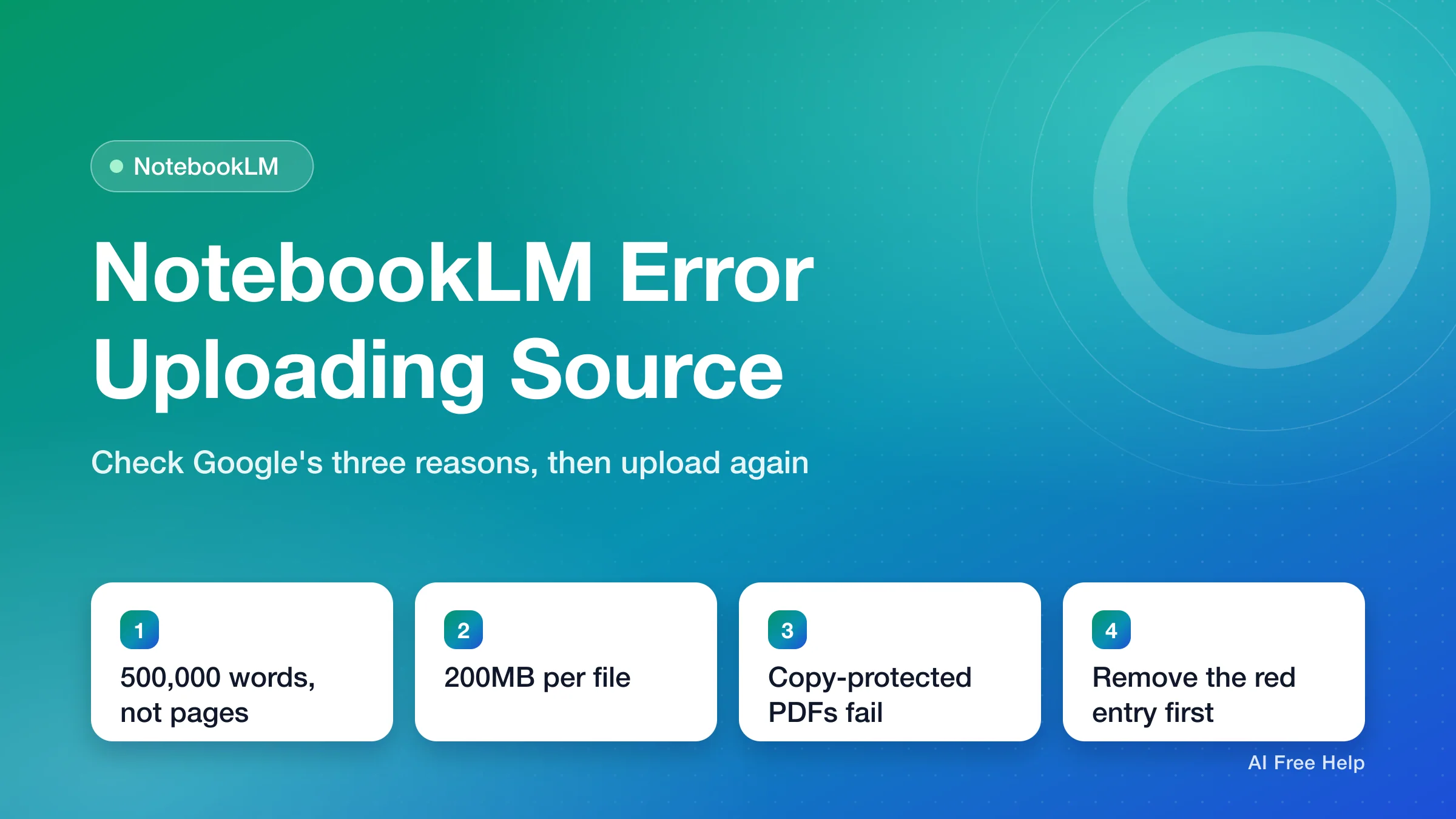
Under "My source import failed", Google's Gemini Notebook FAQ lists three reasons a source can't be imported into NotebookLM: the source has more than 500,000 words, the file is larger than 200MB, or the PDF is copy-protected. It also says, "There's no page limit." Check the three in this order, then remove the red entry and upload again.
- Check the word count, not the page count. The limit is 500,000 words per source. A 1,000-page PDF can be fine, and a long data export can be over. Bing's AI answer says the limit is "roughly 500,000 characters (about 200–300 pages)". That is wrong: Google's help counts words and sets no page limit. To see the count, open the file in Word (the status bar shows words) or in Google Docs (Tools > Word count). Over the limit, split the file into parts of under 500,000 words each.
- Check the file size. 200MB is the limit for a file you upload from your computer. Only a file over 200MB needs to be split or made smaller. Google sets no 50MB or 100MB limit.
- Check whether the PDF is copy-protected. In Adobe Acrobat Reader, open File > Properties > Security. If it shows a security method such as password security, or "Not Allowed" next to copying, NotebookLM can't import it. Ask the author or publisher for an unprotected copy. If you made the PDF yourself, export it again without a password or restrictions.
- Remove the red entry, then upload the file again. A failed source stays in the Sources list. Remove it first so you don't end up with two entries for the same file. According to the maintainer of a third-party open-source NotebookLM client, the failed entry also takes one of the notebook's source slots. Google's help confirms this only for Google Drive sources you lost access to: they "count towards source limits".
If the file passes all three checks, check that its type is on the list below. If even a tiny text source fails, see what to check when every file fails.
Is your file type on NotebookLM's list?
NotebookLM accepts the source types on Google's add sources help page, and a file type that isn't on that list won't upload. To add a source, open the notebook, select Add sources on the left, then choose a file from your computer, a Google Drive file, a link or pasted text.
| Source | Accepted? | Limits and what fails | If it fails |
|---|---|---|---|
| Yes | 500,000 words, 200MB. Copy-protected PDFs fail | Get an unprotected copy | |
| Word (.docx), text (.txt), Markdown (.md), CSV, PowerPoint (.pptx), ePub | Yes | 500,000 words, 200MB | Check the three reasons above |
| Excel (.xlsx) | Not on the help page's list | Google Cloud's API documentation for the business version lists .xlsx, but the consumer help page does not | Open it in Google Sheets and add the sheet, or save it as CSV |
| Old Word (.doc), Pages, OpenDocument (.odt), Rich Text (.rtf), .zip | No | Not on the list | Save as .docx or PDF. Unzip .zip files first |
| Google Docs | Yes, from Drive | You need at least view access to the file | Ask the owner for access |
| Google Slides | Yes, from Drive | Up to 100 slides | Split the deck |
| Google Sheets | Yes, from Drive | Limited to 100k tokens, far less than 500,000 words | Split the sheet into smaller sheets |
| Images | Yes: avif, bmp, gif, heic, heif, ico, jp2, jpe, jpeg, jpg, png, tif, tiff, webp | Google says "certain types of images may not work as well" | Export the image again as a standard PNG or JPG |
| Audio and video files | Yes, as audio: MP3, WAV, M4A, AAC, OGG and others, including MP4 and AVI | The file is turned into a text transcript. Audio with no speech isn't supported, and low-quality audio may fail | Use a recording with clear speech |
| Web page link | Yes | Only the page text is imported. Paywalled pages aren't supported | Copy the text and add it as pasted text |
| YouTube link | Public videos with captions | Fails when the link is invalid, the video has no captions or speech, its language isn't supported, it may be unsafe, and videos uploaded less than 72 hours ago may not import | Paste the video's transcript as text |
| Pasted text | Yes | 500,000 words | — |
In the Gemini Notebook app for Android and iPhone, adding sources is limited to PDF, website, audio, YouTube and copied text. To add a Word file, an image or a Google Drive file from a phone, open NotebookLM in the phone's browser instead.
Google's list grew in late 2025 and early 2026. Word files, PowerPoint, CSV, ePub and many image types were added, and the old 10MB image limit is gone from the page. Guides that say .docx can't be uploaded are out of date. Guides and videos that say MP4 isn't supported are wrong: Google lists MP4 among the audio file types.
When every file fails, even a tiny one
If NotebookLM shows "Error uploading source, try again!" for every file, add three lines of pasted text, or a .txt file with one sentence, to the same notebook. If that small source also fails, the file isn't the problem. Check your notebook's source limit, your plan, and Google's status page.
Source limits per notebook. Google's plan page lists these limits for all sources except notes:
| Plan | Sources per notebook |
|---|---|
| No paid plan | 50 |
| Google AI Plus | 100 |
| Google AI Pro | 300 |
| Google AI Ultra | 500 or 600, depending on the plan |
| Work and school accounts | 50, 100, 300, 400 or 600, depending on the Workspace edition |
Sharing a notebook doesn't change the source limit for anyone in it. The 50-source limit that guides and AI answers repeat applies only to accounts without a paid plan.
Check that your plan is recognized. Google says paid users see a badge, such as Plus, Pro or Ultra, next to their profile picture in NotebookLM. If you pay and the badge is missing, NotebookLM is not applying your plan to the account you are signed in with.
Check Google's status page. The Google Workspace Status Dashboard lists Gemini Notebook as a service. Two past incidents match "it used to work and now nothing uploads":
- On March 10, 2025, NotebookLM users worldwide could not upload sources or use chat for 2 hours and 40 minutes.
- On May 19 and 20, 2026, paid NotebookLM accounts were treated as free and hit the lower limits, including the source count per notebook. Google listed no workaround and fixed it after about five and a half hours by returning the system to an earlier state.
When every file fails at once, check the dashboard and wait before you change your files.
Work and school accounts. Google's FAQ says the organization's admin has to turn on Gemini Notebook for work and school accounts. "Access to Google Drive data has been disabled for this account. Please contact your administrator." means the admin has not allowed NotebookLM to read Drive files. Only the admin can change that setting.
Which NotebookLM upload tips are worth your time?
Google doesn't list browser settings, file names or upload methods among the reasons a NotebookLM source fails. Incognito windows, turning off extensions, clearing the cache, turning off hardware acceleration, lowering Chrome's Enhanced protection and trying a new notebook all appear in a general checklist that a community volunteer (a Product Expert, not a Google employee) posted on Google's help forum. Google's own pages don't list them. For every tip in the table below, including the ones in the last two rows, nobody who tried it reports it fixing a NotebookLM upload.
| Tip | What's known |
|---|---|
| Incognito window, turning off extensions, clearing cache and cookies, another browser, turning off hardware acceleration, lowering Chrome's Enhanced protection, a new notebook | They're harmless, so try them after the checks above |
| Signing out and back in, or uploading the same file again and again | Nobody reports retrying alone, with nothing changed, fixing it. Remove the red entry and check the three reasons, or wait until an incident on the status page ends, then upload again |
| Converting the file to .txt | Not needed for .docx, which is supported. For a PDF that won't import, pasting its text or saving it as .txt keeps the words but loses images and layout |
| Splitting into 50–100MB parts | Only a file over 200MB or 500,000 words needs splitting |
| Renaming the file, running OCR on a scan, using "Choose file" instead of drag and drop | Google doesn't name any of these as a reason. Bing's AI answer also blames session timeouts, which no Google page mentions. Check the three reasons first |
| Adding the file from Google Drive, or pasting the text | Both are standard ways to add a source in Google's help, so they're a different route when uploading from your computer fails. They don't change what's inside a file that fails the three checks |
Still failing? Report it to Google
If a NotebookLM source still fails after you have checked the FAQ's three reasons and tried a small pasted-text source in the same notebook, send feedback from the app. Google's Report a problem page says to open Settings > Send Feedback, where you can add a screenshot. Google's FAQ also gives an email address for questions and support requests: notebooklm-user-support@google.com. Include the file type, its size, your plan, and whether a small pasted-text source works in the same notebook. Work and school account users should contact their administrator, who can open a case with Google Workspace support.