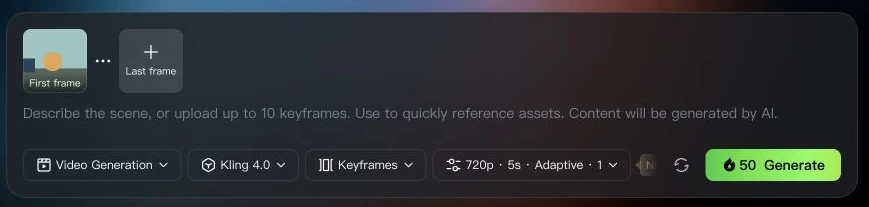
Kling AI's "Failed to upload image (please try again with a different image)" means the image you picked did not get into the image-to-video or Keyframes slot, and the message does not say why. The same upload step can show other messages with a reason in brackets; errors after you press Generate, such as "Failed to submit tasks", are a different problem.
Kling's Community Guidelines say content goes through "technical review and human moderation", but Kling does not say whether uploads are checked or what message a blocked upload shows. Nothing official links the generic message to a content flag or to your account. Kling's Community Guidelines do not mention public figures or celebrities; they do list content that infringes other people's rights, including their likeness.
What the words in brackets mean in Kling's upload message
When Kling AI's upload message names a reason in brackets, that bracket tells you what to change. Find your message in the first column.
| Message | What it means | What to change | Where this comes from |
|---|---|---|---|
| "The size of the uploaded file exceeds the size limit. (30MB)" | The file is larger than 30 MB. | Export a smaller copy at the same width and height. See Over 30 MB. | Kling 4.0 web editor. The 4.0 guide lists 30 MB per image. |
| "Upload failed (Short side must exceed 300 pixels)" | The shorter side is too small. Kling asks for a short side larger than 300 px. | Use a larger image, or make the short side of a copy larger than 300 px. | Kling 4.0 web editor, for a 299 × 299 image. |
| "Upload failed (The aspect ratio of uploaded images must be between 5:2 and 2:5)" | The image is too wide or too tall. | Crop or pad a copy so the shape is between 2:5 and 5:2. | Kling 4.0 web editor, for a 1,920 × 400 image. |
| "Failed to upload image (file format mismatch.)" | Kling did not accept the file type. | Export a real JPG or PNG copy. Renaming the file extension does not change the format. | Kling has shown this wording. The 4.0 API accepts JPG, JPEG and PNG. |
| "Failed to upload image (Please change the content and try again)" | The wording points to what the image shows. | Use a different image. | Kling has shown this wording. |
| "Failed to upload image (please try again with a different image)" | No reason is given. | Follow the checks for a message with no reason. | — |
| "Upload failed" with nothing after it | No reason is given. | Same checks. | — |
When the bracket gives no reason: check in this order
When Kling AI only says "Failed to upload image (please try again with a different image)", check the file type, size and shape first, then test a different image, then contact Kling support.
- Check the file type. The Kling 4.0 Image to Video API accepts JPG, JPEG and PNG. HEIC (iPhone photos) and WebP are not on that list. Export a JPG or PNG copy.
- Check the size and the shape. On a Mac, select the file and choose File > Get Info. On Windows, right-click the file, choose Properties, then open Details. For Kling 4.0 on the web: 30 MB or less, a short side larger than 300 px, and a shape between 2:5 and 5:2. Images in 9:16, 1:1 and 16:9 all fit.
- Try a different image in the same slot. Use a plain photo, such as a landscape, that meets the limits in step 2. If it loads, the problem is that one file. If it also fails, the cause is not your file.
- If only your image fails, look at what it shows. If the image may break Kling's Community Guidelines, use a different image.
- Contact Kling support. Kling's Terms of Service list support@kling.ai as its contact address. Send a screenshot of the message, the file type, size, width and height, and where you uploaded it (web or app, model, slot).
If you upload from the Kling Android app, check the same things as on the web: a JPG or PNG file, 30 MB or less, a short side larger than 300 px, and a shape between 2:5 and 5:2.
There is no evidence that clearing the browser cache, refreshing the page, switching browsers, turning off extensions or changing networks fixes Kling's "Failed to upload image" message, although AI answers and guides suggest all of them.
Over 30 MB: keep the pixels, shrink the file
Kling AI's "exceeds the size limit. (30MB)" message is about the file size in megabytes, not the width and height of the picture. A losslessly compressed copy keeps every pixel and can be much smaller.
In the Kling 4.0 web editor, a PNG of about 36 MB showed the 30MB message. A lossless copy of the same 4,608 × 2,592 pixels, under 0.1 MB, loaded as the first frame. That image had large areas of flat color, so a detailed photo will shrink much less.
- Keep the original and export a copy. Give the copy a new file name. Leave the width and height unchanged. In GIMP, export as PNG and set Compression level to 9. The GIMP PNG export manual explains that this setting is lossless.
- Check the new file size. It must be 30 MB or less. If a photo is still too large, export a JPG copy instead, or reduce the width and height of a separate copy. JPG is smaller but drops some detail.
- Upload the copy to the same slot. In Kling Creative Studio, choose Video Generation > Kling 4.0 > Keyframes, open First frame, choose Upload, and pick the copy.
Why guides say 10 MB, 30 MB or 50 MB
Kling AI's image size limit depends on the model and on whether you use the web editor or the API. The 10 MB figure in guides and AI answers does not apply to Kling 4.0 on the web.
- 30 MB: The Kling 4.0 User Guide lists 30 MB per image for Keyframes. The Kling 4.0 Image to Video API also lists 30 MB.
- 50 MB: The Kling 3.0 Image to Video API lists 50 MB for first and last frames. Kling's current API pages for 2.6, 2.5 Turbo and O1 also list 50 MB.
- 10 MB: Kling's legacy Motion Control API page still lists 10 MB, and third-party API resellers publish 10 MB. In the Kling 4.0 web editor, a PNG of about 11 MB loaded as the first frame.
Kling's aspect ratio limit is 2:5 to 5:2, which is 0.4 to 2.5. Guides that write "1:2.5 to 2.5:1" give the same range for Kling. An AI answer that says "Aspect ratio: 1.5 – 2.5" for Kling is wrong: that range would rule out square and 4:3 images.
Other websites that run Kling models set their own upload limits.
How to tell the new image is in the slot
A Kling AI upload worked when the slot shows a thumbnail of the new image and the file name you picked. A sign-in window after you pick a file does not mean the upload finished: sign in, then check the slot again. You do not need to press Generate to check.