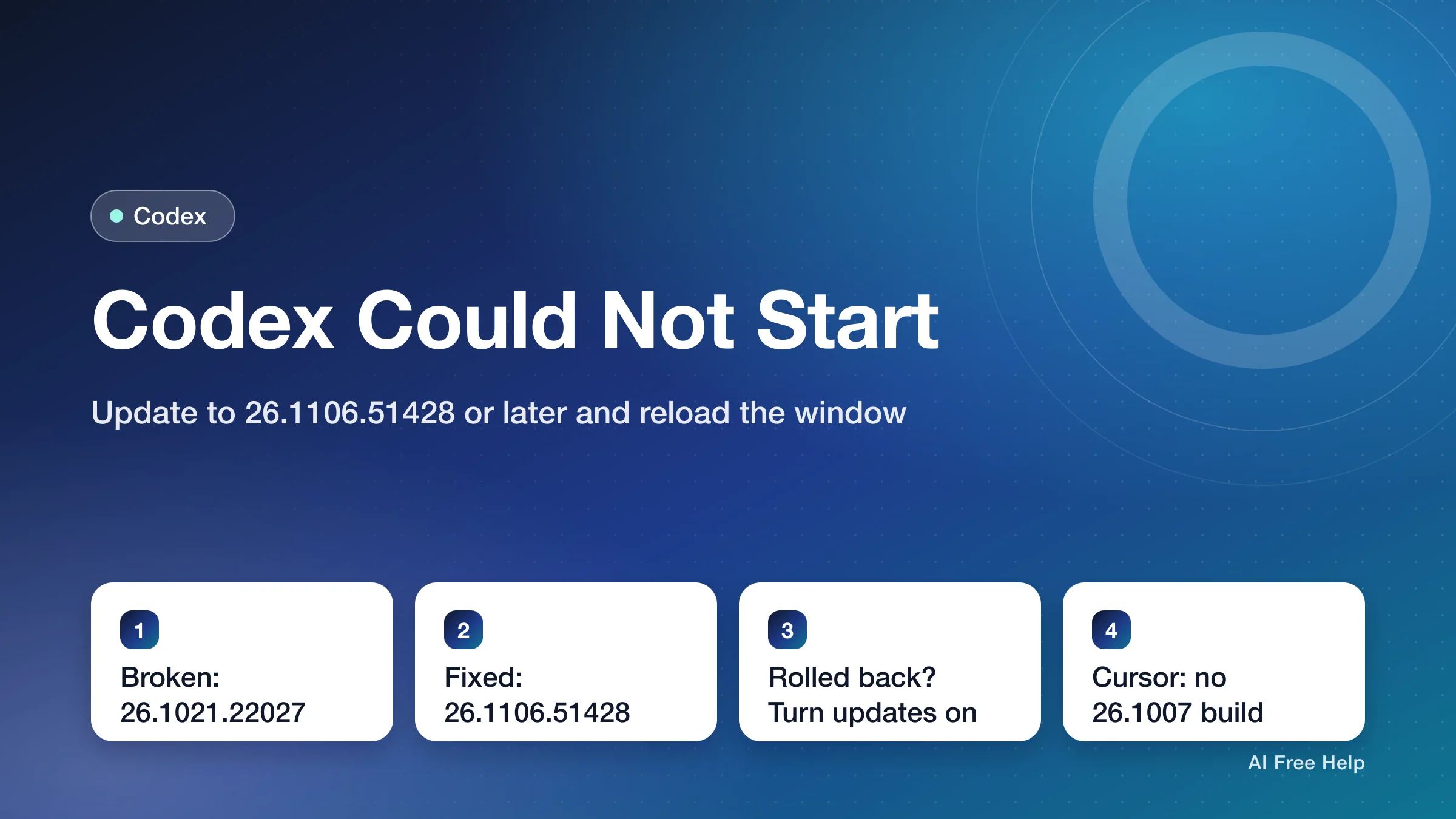
"Codex could not start / The extension could not start its user interface." is the page the Codex extension shows when its sidebar or chat tab does not finish loading in time. The extension's log shows a 30-second limit (renderer_ready_timeout, timeoutMs=30000), and after that the page stays in place of Codex. Most reports of this message came from Codex extension build 26.1021.22027 or its pre-release 26.51021.22027, which had a startup bug. The editor or its environment can also make the Codex view start too slowly, for example a remote window, GPU acceleration or an antivirus program. In both cases it is not a Codex service outage and not a problem with your account.
The page appears in VS Code, VS Code Insiders, Cursor, Antigravity, VSCodium and code-server, both locally and in Remote-SSH, WSL and Dev Containers windows. Already rolled back? See what to do if you rolled back to an older Codex build. Using Cursor or Windsurf? See Codex in Cursor, Windsurf and other Open VSX editors.
Update the Codex extension, then reload the window
To clear "Codex could not start" in VS Code, check the Codex extension version, update it to 26.1106.51428 or later, and reload the window. This is what OpenAI staff said when the fix shipped: "update the Codex extension to 26.1106.51428 (stable) or 26.51106.51428 (pre-release), then reload the editor window".
-
Open the Extensions view and find Codex. Press
Ctrl+Shift+X(Cmd+Shift+Xon a Mac) and search for "Codex". The extension is "Codex – OpenAI’s coding agent", IDopenai.chatgpt. Its page shows the installed version.- 26.1021.22027 or 26.51021.22027: this is the broken build. Continue with step 2.
- 26.1007.21434 or older: see if you rolled back to an older Codex build.
- 26.1106.51428 or newer: you already have the fix. Do step 3, then see if Codex still shows the message after updating.
-
Click Update on the Codex extension. By default, VS Code waits 12 hours before it installs an extension update by itself, and the Update button skips that wait (VS Code: Extension Marketplace). From a terminal, this command installs the latest build:
textcode --install-extension openai.chatgpt --force -
Reload the window. Open the Command Palette (
Ctrl+Shift+P, orCmd+Shift+Pon a Mac) and run Developer: Reload Window. Then open Codex again with the Codex icon or Codex: Open Codex Sidebar.
In a Remote-SSH, WSL or Dev Containers window, Codex runs on the remote side. Update it from that connected window, not only in a local window. An OpenAI staff member, about a dev container: "Make the change in the connected dev container window."
If the sidebar now loads but your second message in a chat fails with "Error submitting message" and "DisposableStack is not defined", that is a different bug in Codex builds from 26.1117.31558 on, in remote windows of VS Code 1.122 or older. See the DisposableStack guide.
Which Codex extension builds are broken and which have the fix
The Codex startup bug is in builds 26.1021.22027 and 26.51021.22027, and every Codex extension build from 26.1106.51428 on includes the fix. A pre-release build has the same number with a 5 added after "26." (26.51106.51428 is the pre-release of 26.1106.51428). The table shows where each build can be installed as of November 23, 2026.
| Codex extension build | Released | What it means for this message | VS Code Marketplace | Open VSX | Cursor's extension list |
|---|---|---|---|---|---|
| 26.1007.21434 | October 9, 2026 | Last stable build before the bug | Yes | No | No |
| 26.1021.22027 (pre-release 26.51021.22027) | October 23, 2026 (Open VSX: October 26) | Broken: shows "Codex could not start" | Yes | Yes | Yes |
| 26.1106.51428 (pre-release 26.51106.51428) | November 11, 2026 | First build with the fix | Yes | Yes | Yes |
| 26.1111.21308 | November 13, 2026 | Later build with the fix | Yes | Yes | Yes (the newest there on November 23) |
| 26.1117.41037 | November 20, 2026 | Latest stable build | Yes | Yes | Not yet |
The fix is announced only in OpenAI staff's reply on GitHub. The official ChatGPT & Codex changelog has entries named "Codex app 26.1106" and "Codex app 26.1111". They describe the ChatGPT desktop app, which uses the same version numbers, and they do not mention the extension's startup problem.
If you rolled back to an older Codex build
If you rolled back the Codex extension to 26.1007.21434 and turned off auto-update, VS Code keeps you on that old build and will not install the fix by itself. Before November 11, 2026, the rollback was a common workaround. It worked for some people and not others, and it is not needed now.
The old build stays for one of three reasons:
- An extension installed from a VSIX file has auto-update turned off by default (VS Code: Extension Marketplace).
- The setting
"extensions.autoUpdate": "off", which some guides and AI answers give, turns off updates for every extension, not only Codex. - Turning off Auto Update for the Codex extension alone also stops its updates.
To get back to the fixed build:
- Right-click the Codex extension in the Extensions view and turn Auto Update back on.
- Click Update on the Codex extension, or run
code --install-extension openai.chatgpt --force. - If you set
"extensions.autoUpdate": "off", remove that line from your settings, or run Enable Auto Update for Extensions from the Command Palette. - Run Developer: Reload Window.
On a pre-release build such as 26.51007.21434, update to 26.51106.51428 or later the same way. OpenAI's troubleshooting page says Codex keeps chat transcripts in ~/.codex/sessions. After a rollback, older chats may not show in the Codex sidebar. Back up that folder before you change the Codex extension version.
Codex in Cursor, Windsurf and other Open VSX editors
Codex works in Cursor and Windsurf, and the fix for "Codex could not start" is the same there: update the Codex extension to 26.1106.51428 or later and reload the window. Cursor staff said the same in Cursor's forum: the error "comes from Codex extension version 26.1021.22027 itself… and OpenAI published a fix today in 26.1106.51428".
What is different is where the builds come from. Cursor uses the Open VSX registry through its own marketplace proxy (Cursor Docs: Extensions). Windsurf, now called Devin Desktop, also uses Open VSX (Devin Docs: Recommended Extensions). The same applies to VSCodium and code-server when they install extensions from Open VSX. On Open VSX:
- 26.1007.21434 does not exist. Install Another Version (called Install Specific Version in some editors) and
code --install-extension openai.chatgpt@26.1007.21434cannot find it. - There are no Codex builds between September 11 and October 26, 2026, and no stable Windows builds between July 24 and October 26. A rollback there lands on a much older build.
- Cursor's own list can lag behind Open VSX. On November 23, Cursor offered 26.1111.21308 as the newest build, while Open VSX already had 26.1117.41037. Both include the fix.
If Cursor does not offer 26.1106.51428 or later yet, Cursor staff: "download the Windows x64 VSIX from Open VSX Registry and run Extensions: Install from VSIX…", then reload the window. Choose the VSIX for your own system. A VSIX install turns auto-update off for that extension, so check for updates yourself later.
A missing Codex icon in Cursor is a separate issue. Cursor keeps the Secondary Side Bar for its own agent and shows "View containers cannot be contributed to the Secondary Side Bar in Cursor. It is reserved for Cursor's agent UI." Codex then opens under Explorer or in an editor tab. Run Codex: Open Codex Sidebar or Codex: New Codex Agent from the Command Palette to open it.
If Codex still shows the message after updating
"Codex could not start" can still appear on 26.1106.51428 or later, for example in a Dev Container, or when VS Code reopens several windows at once and some of them load in the background. Try these in order:
-
Run Developer: Reload Window in each window that shows the message. When the fix shipped, OpenAI staff said to reload the editor window where the message appeared. On any build, reloading often brings the Codex view back, although on the broken build the message can return. A Codex chat tab and the sidebar load separately, so one can fail while the other works.
-
Turn off GPU hardware acceleration. This often fixes the Codex message on Linux and Windows, even though one AI answer puts it on its list of fixes that don't work. Close VS Code, then start it from a terminal with
code --disable-gpu, which turns off GPU hardware acceleration for that session (VS Code: Command Line Interface). -
On WSL, update VS Code itself. After the VS Code 1.141.1 update in October 2026, the Codex view did not load in WSL windows when the distro name had capital letters. That was a VS Code problem, and later VS Code versions fix it.
-
Check your antivirus. An antivirus program that blocks OpenAI's files can also stop the Codex view from loading. Allowing Codex there may help.
-
Report it on GitHub. When the fix shipped, OpenAI staff asked people who still see the message to give "your OS, editor, and the extension version you tested". Use the openai/codex issue tracker.
The 30-second limit is built into the Codex extension. Neither the Codex extension settings nor config.toml has an option to change it.
Fixes from guides and AI answers that don't help with this message
The fix OpenAI staff gave for "Codex could not start" is to update the Codex extension and reload the window. The other fixes that guides and AI answers suggest for this message:
- Moving
~/.codexaway: there is no evidence it fixes this message. The advice comes from a different problem in April 2026, when the Codex sidebar kept loading without this message. Moving the folder also moves your saved chats. - Reinstalling the Codex extension: it rarely helps. On 26.1021.22027 it installs the same broken build again.
- Clearing VS Code's webview or Service Worker cache: nobody reports a lasting fix. Where it helped, it lasted only until the next restart or the next window.
- A clean or temporary VS Code profile: it helps only in rare cases.
- Checking
~/.codex/config.tomlor turning off a VPN: nobody reports either one working for this message. OpenAI staff's advice to check proxy and VPN settings was for the August 2026 startup problem, after updating. - Editing the extension's files to raise the 30-second limit: this site does not recommend changing extension code. Every Codex update replaces the file.
Similar Codex messages: which ones the update fixes
Three messages look like "Codex could not start" in the Codex extension. Updating the extension fixes the first one. The other two need a different step.
- "Codex could not start. The extension couldn't load its resources.": Codex builds from early August 2026 showed this when startup took longer than 30 seconds. OpenAI staff said in August that an update fixed it: build 26.810.41047 "fixes the startup watchdog issue". It is likely an earlier wording of the same kind of startup timeout, and updating the extension is the answer for both.
- "This is open in another app. Close it there to continue here.": the Codex sidebar loaded, but one chat is in use by another Codex app or window, such as the ChatGPT desktop app or the Codex CLI. Close Codex in the other app or window, for example quit the ChatGPT desktop app or close the other VS Code window, then open the chat again here. This is not the startup bug that 26.1106.51428 fixed.
- "View containers cannot be contributed to the Secondary Side Bar in Cursor.": this is about where Cursor places the Codex view, not about Codex failing to start. See Codex in Cursor, Windsurf and other Open VSX editors.