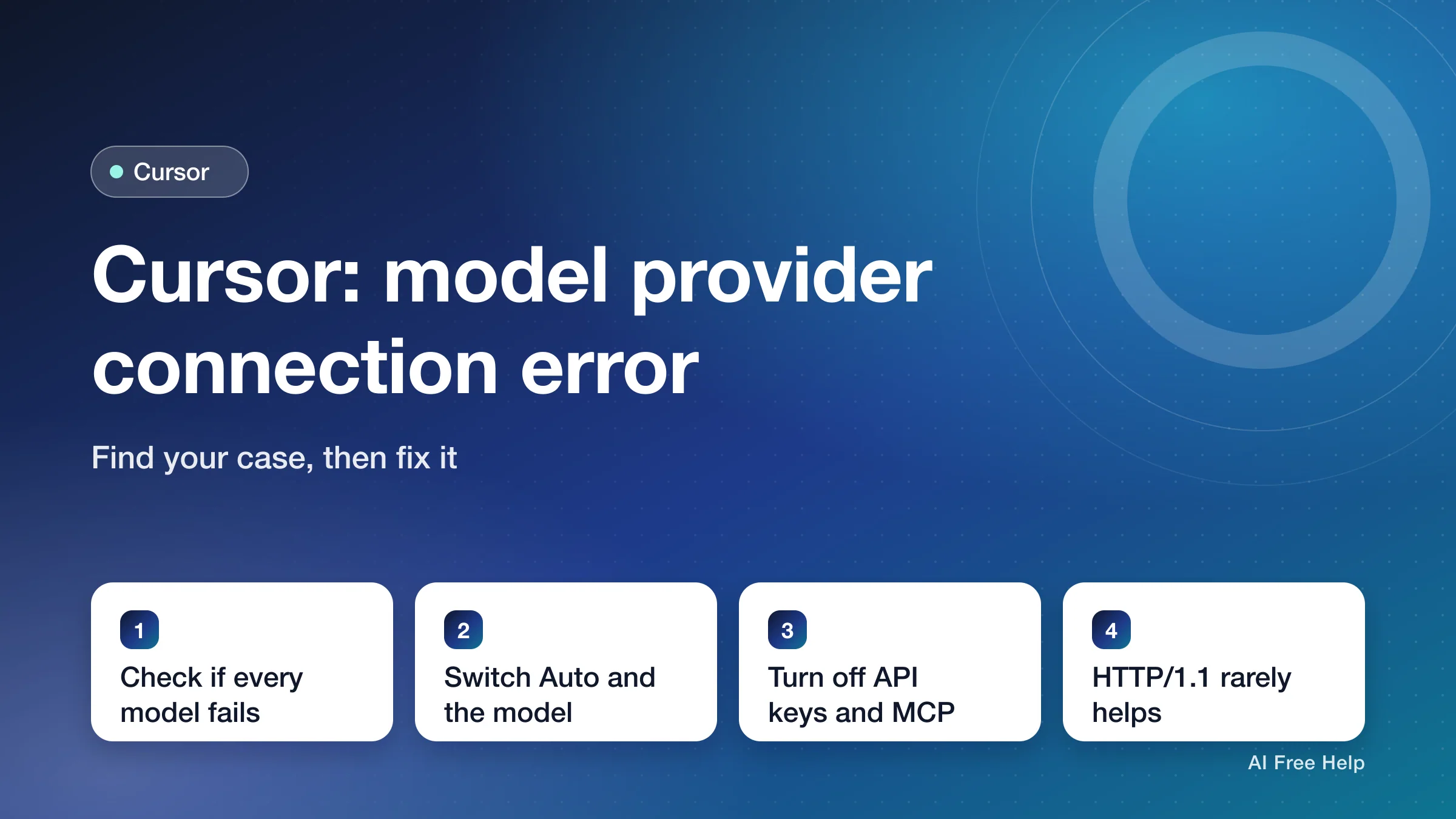
"We're having trouble connecting to the model provider. This might be temporary - please try again in a moment." is the error Cursor shows in Chat or Agent when a request to the AI model fails and Cursor stops retrying. The line above it reads "Unable to reach the model provider", "Provider Error" or "Network Error". Despite the wording, the cause is rarely your internet connection. Cursor staff: it is "a fairly generic error" that can hide many different problems.
Your work in the chat is not lost. When a Resume button appears under the error, Cursor staff: Resume "picks up where the run stopped and nothing is lost". The one chat that can't continue is a chat whose image data broke (see Only one chat keeps failing).
Which models fail tells you what to fix in Cursor
When Cursor can't reach the model provider, look first at which models fail and what is in the chat.
| What you see | Cause | First step |
|---|---|---|
| Every model fails at once | Often an outage at Cursor or at the model provider. A broken MCP server or images in the chat can do the same | Check the status page first |
| Auto fails, but a model you pick works | Auto sent the request to a provider that is overloaded | Pick a model by hand |
| Only Auto and Cursor's own models work | Often a personal API key or a changed OpenAI Base URL | Turn off personal API keys |
| It started when you turned on an MCP server | Often that server's tool definitions, which the model provider rejects | Turn off MCP servers |
| Only one chat fails | Images in the chat, a very long chat, or a very large context | Start a new chat |
| None of these, or you are on a company network | A proxy or firewall, or a bug that needs Cursor's help | Check the network last |
Every model fails: check for an outage
When every model in Cursor fails with "trouble connecting to the model provider" at the same time, an outage at Cursor or at the model provider is a common cause. A broken MCP server or images in the chat can also make every model fail, so if no outage shows up, go through the other cases.
- Open Cursor's status page. The address now opens status.x.ai. It has a "Third-party models" entry for Claude, GPT and other outside models.
- Don't trust a green page completely. Cursor staff: short partial outages can stay below the threshold and still show "operational".
- Try a model from another company, for example Claude instead of GPT. Cursor's status page suggests the same thing during a one-provider outage: "Other models are unaffected and can be used in the meantime."
- Wait. Cursor has not published how long these outages last. Most people who waited saw Cursor answer again within about half an hour to a day.
Only Auto fails, or only the model you picked fails
If Auto fails but a model you choose yourself works, pick a model in the model picker until Auto recovers. Cursor staff: Auto can route "a request to a provider that's currently overloaded" and not "switch to another one automatically". During a sudden outage, Auto retries the same model a few times before it gives up. When only some models fail, switching models often gets the work going again.
The reverse also happens. If a model you picked fails and Auto works, switch to Auto for now. If Claude, GPT and Gemini all fail while Auto works, read the next section.
Only Auto and Cursor's own models work: check your API keys
If Auto, Composer and Cursor's own Grok models work but Claude, GPT and Gemini all fail, look for a personal API key. Cursor staff: "When any personal key toggle is on, Cursor sends every model except Cursor's own models… through that personal key configuration". An empty, invalid or unsupported key then breaks every outside model.
- Open Cursor Settings > Models and scroll to the API key section.
- Turn off every personal key toggle (OpenAI, Anthropic, Google, Azure OpenAI, AWS Bedrock) and turn off Override OpenAI Base URL.
- Open a new chat and send a short message to Claude or GPT.
Turning off personal keys often fixed this error. Cursor's Bring your own API key page explains why: "If a key is invalid or rejected by the provider, requests using that provider fail until you update or remove the key."
You use MCP servers
If you use MCP servers, turn them all off and send the message again. In Cursor's MCP integrations page the switches are under Customize > MCPs. Cursor staff have also given the path Cursor Settings > Tools & MCP. Turning off MCP servers often fixed this error, including errors on every model.
MCP server maintainers found one cause: some tool definitions use a format the model provider does not accept, and the provider then rejects the whole request. Maintainers fixed it by changing their tool definitions. Update the server, or turn servers back on one at a time to find the one that breaks.
Only one chat keeps failing
If new chats work but one chat fails on every message, the problem is in that chat. Cursor staff have named three causes:
- Images in the chat. Every new or edited message sends the images again. Cursor staff: when the image data in a chat breaks, "this chat can't be recovered, but a new chat should work normally". Start a new chat without images, or pick a model that reads images.
- A very long chat. In long chats the request can be built in the wrong format and the provider rejects it. Any retry in that chat fails the same way. Copy what you need into a new chat.
- A very large context. Cursor staff in November 2025: "a few reports of connection errors when the context goes above roughly 185–200K tokens with Sonnet 4.5", which the team was investigating. Turn off Max mode or start a new chat.
None of these: network, diagnostics and version
Check the network last. On a company network, a proxy or TLS inspection can break the stream between Cursor and its servers.
- Run the network check. In Cursor 3.30.14 it is Cursor Settings > Browser & Network > Run Diagnostic. Cursor's help pages call the tab Network and the button Run Diagnostics, and menu names can change between versions. If every check passes, your connection to Cursor's servers works, so go back to the cases above.
- On a company proxy or VPN only, set HTTP Compatibility Mode to HTTP/1.1 and restart Cursor. If nothing changes, set it back to HTTP/2.
- Ask your IT team to follow Cursor's Network Configuration page, which lists what Cursor needs.
- Update Cursor, then send your Request ID to Cursor (see Send the Request ID to Cursor).
The title above the message decides whether Cursor offers Try again
Cursor's servers send the "trouble connecting to the model provider" text. Cursor 3.30.14 shows it under one of three titles, and the title decides whether Cursor offers Try again.
- Unable to reach the model provider or Network Error: Cursor's servers failed to connect to the provider, or the provider was at capacity. Cursor staff: errors like this are "treated as retriable, so we automatically retry them". In the editor's chat panel you then see Try again, or Resume if the reply had already started. The new Agents window does not show these two buttons. For one of these capacity errors (ERROR_RESOURCE_EXHAUSTED), Cursor staff said the request "wasn't billed".
- Provider Error: the provider rejected this request. Cursor marks it as not retryable, so no Try again button appears. Cursor staff: "a 400 from the provider gets replaced with a connectivity message". Cursor staff: in that case "any retry in this same chat will hit the same problem". Cursor staff: send a short new message such as "continue" instead of retrying, or start a new chat, or switch models.
Before the error, you may see "Rate limited by model provider, retrying…". It is the same request. Cursor staff: the "Rate limited" and "trouble connecting" messages are "Cursor retrying and then giving up on that request".
These names and buttons are from Cursor 3.30.14 as of November 2026, and Cursor changes them. In October 2026, Cursor staff: when the provider declines a request, Cursor "now says the request was blocked by the provider's usage guidelines" instead of showing this message.
Do HTTP/1.1, a VPN change, diagnostics or your own API key help?
AI search answers treat Cursor's "trouble connecting to the model provider" as a network problem first. The fixes that worked were about models, keys, MCP servers and the chat: turning off MCP servers or personal API keys, switching between Auto and a chosen model, and waiting out an outage (see Which models fail tells you what to fix in Cursor). The other common advice holds up less well:
- Starting a new chat: works for some people and not others. It helps when the chat itself is the problem, and does nothing during an outage or with a broken MCP server or key.
- Switching HTTP Compatibility Mode to HTTP/1.1: switching Cursor to HTTP/1.1 rarely fixes "trouble connecting to the model provider", and the error often stayed after the switch. Cursor's own statements disagree. The Network, proxy, and remote connections page says to set HTTP/1.1 behind proxies. The Network Configuration page says Cursor "automatically falls back to HTTP/1.1" when HTTP/2 streaming fails. Cursor staff in February 2026: switching to HTTP/1.1 "is a solid fix". Cursor staff in October 2026: HTTP Compatibility Mode "won't help with this error… HTTP/2 is the right default". Cursor's setting text adds that HTTP/1.1 "increases resource utilization and latency".
- Using your own API key instead of Cursor's models: it helped only in rare cases, and the same error also appears with personal keys. Cursor staff in January 2026: "Use your own OpenAI API key directly". Staff later told people to remove keys. Both fit the rule above: a working key can help, but any key that is turned on also carries every outside model.
- Signing out, restarting, a clean profile or updating Cursor: none of these is a dependable fix. Each cleared the error only in isolated cases.
- Run Diagnostic: it often passes every check while the error continues. A clean result rules out your connection to Cursor's servers. It does not fix anything.
- Turning off a VPN or changing networks: nobody reports it working for this error.
- Settings such as
cursor.maxTokens,cursor.modelProviderorcursor.temperature: these are not Cursor settings. They are not in Cursor's documentation or in Cursor 3.30.14, so adding them to settings.json changes nothing.
Send the Request ID to Cursor
If Cursor's model provider error continues after these checks, send Cursor the Request ID of a failed message. Cursor staff can look up a Request ID and see why that request failed.
- Copy the ID. In Cursor 3.30.14, click Copy Request under the error. It copies the Request ID with the error details. Cursor's Reporting a bug page also gives a menu route: the ... menu, then Copy Request ID.
- Add your version and setup. Cursor's Agent troubleshooting page says to find the version in Cursor > About Cursor on macOS or Help > About on Windows and Linux. Add the model, whether Auto was on, any MCP servers or personal keys, and the time with your time zone.
- Post it in the Cursor forum's Bug Reports category. The Reporting a bug page says Request IDs "are only meaningful within Cursor's backend", so you can share them. For connection problems, the page says the team "can often debug them with Privacy Mode enabled".
Questions about Cursor's model provider error
Is Cursor down right now?
Check Cursor's status page, but a green page does not rule out a short outage (see Every model fails: check for an outage).
Does a failed request use up my Cursor plan?
Cursor's help pages don't say. For one capacity error (ERROR_RESOURCE_EXHAUSTED), Cursor staff said the request "wasn't billed". Check your usage in your Cursor dashboard if you are unsure.
Is this a Windows problem?
No. The same error appears on Windows, macOS and Linux, and in the Cursor CLI. The cases above apply to all of them.