"Could not load this ChatGPT conversation" means the ChatGPT page asked for that chat and did not get it back. Until about September 2026, when the ChatGPT website changed, the same message read "Unable to load conversation", often followed by a long chat ID. On chatgpt.com, a chat that was deleted or belongs to another account gets a different message, "You don't have access to this conversation". In the ChatGPT desktop app, a chat deleted elsewhere may still show "Could not load this ChatGPT conversation". The message is also not "This conversation is too long, please start a new one.", which some chats that hit the length limit return (see step 5 for one chat).
OpenAI's Troubleshooting ChatGPT Error Messages page has no entry for this message. Its nearest entry, for a blank or endlessly loading page, lists local fixes such as clearing cookies and a private window. In the same weeks, OpenAI Support staff said "a rate limit blocked that chat from loading" and "I don't have a tested workaround for it yet."
Which ChatGPT chats won't load, and how to open them
To open a ChatGPT chat that shows "Unable to load conversation", wait until Try again can be clicked, try the ChatGPT phone app and ChatGPT search, and if it still fails, save its content with a data export. The details depend on how many chats fail and which sentence you see:
| What you see | What it points to | First move |
|---|---|---|
| One or two ChatGPT chats show the message, others open | A problem with that chat, or the rate limit | Steps for one chat |
| Most old chats show it, new chats work. The Android app may say "Too many requests" | Official: OpenAI is working on saved chats that fail with a rate limit (HTTP 429) | Steps for most chats |
| "You don't have access to this conversation…" | The chat belongs to another account or workspace, or no longer exists | Check the account |
One ChatGPT chat won't open but others do
When only one ChatGPT chat shows the error, try it from another place, then save its content.
- Wait until Try again can be clicked, then click it once. A grey Try again button means the page is still loading, or is waiting out a wait time set by OpenAI's servers. The page does not show how long that wait is. Clicking while it is grey sends nothing.
- Open the same chat in the ChatGPT phone app. This works for some people and not others. The app may not show the arrows that switch between earlier versions of an edited message.
- Find the chat with search. OpenAI Support staff: chats missing from the sidebar "haven't necessarily been deleted", and you can search for a word or phrase from the chat.
- If the chat is inside a project, move it out of the project. This may let the chat open, but the fix may last only a day.
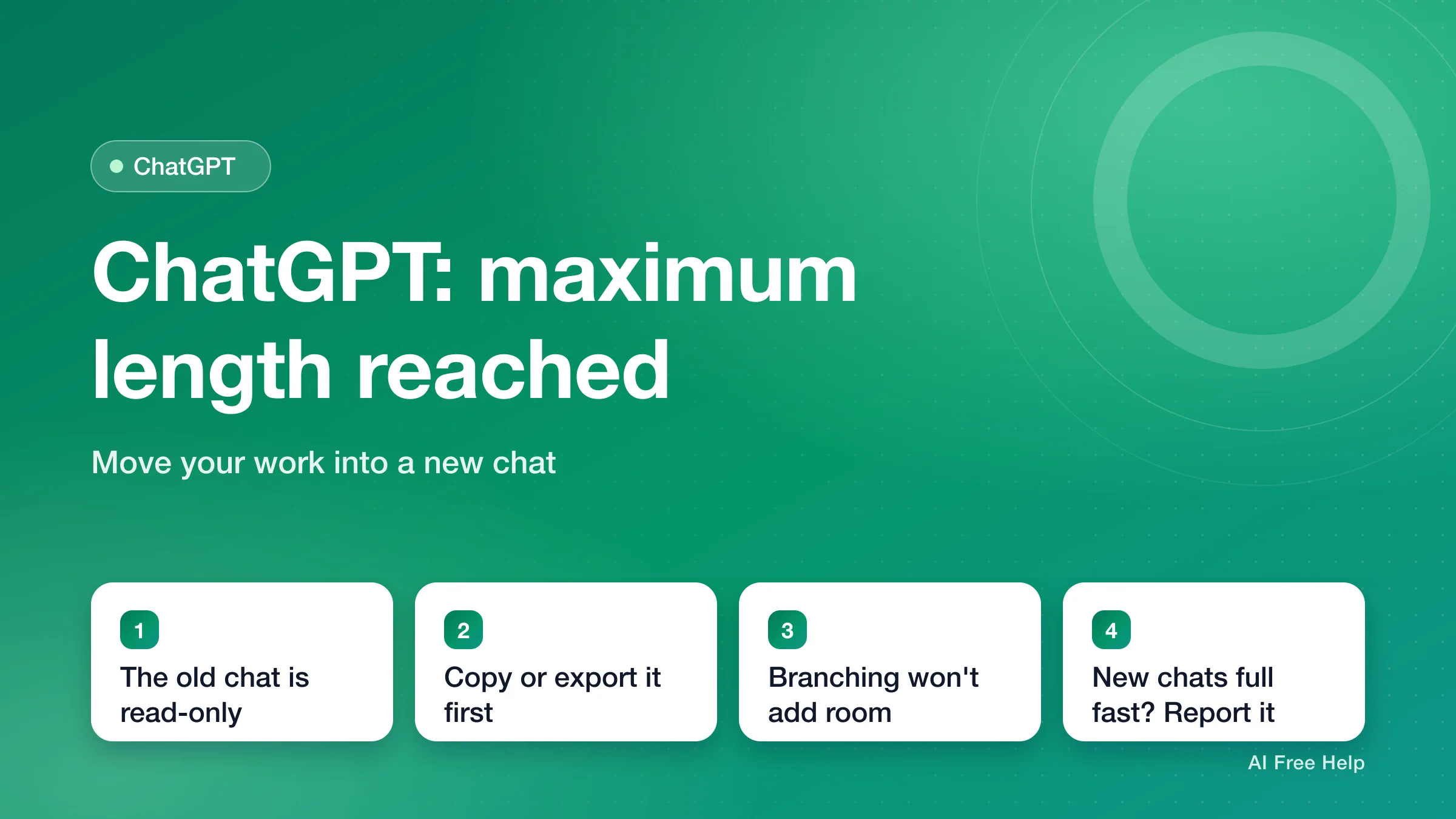
- If the chat once hit ChatGPT's length limit, the server may refuse to send it at all and reply "The conversation is too long, please start a new one." OpenAI Support staff: the issue with older or longer chats "has since been fixed", in September 2026. If it still fails, report the chat (see what to send OpenAI Support). For carrying a full chat's work into a new one, see ChatGPT "You've reached the maximum length for this conversation": How to Continue.
- Request a data export and look for the chat in the ZIP file. See get the chat's content back.
Most of your old ChatGPT chats won't open
When nearly every saved ChatGPT chat shows the error and new chats still work, the likely cause is the rate limit described in the next section.
- Close every other ChatGPT tab and window, including the desktop app and other chats that are still writing an answer.
- Wait, then open one chat at a time. Reported waits ranged from a few minutes to several days.
- Try the ChatGPT phone app if the computer still fails.
- Request a data export if you need a chat's content now.
ChatGPT says "You don't have access to this conversation"
"You don't have access to this conversation. Make sure you're logged in to the right account, or ask the conversation owner to send you a share link." means ChatGPT's servers answered that this chat is not available to the account you are using. OpenAI Support staff: "The access error alone doesn't confirm deletion."
- Check which account is active. OpenAI's multiple accounts page says "Each account keeps its own chats" and tells you to "check the active account shown in the account menu."
- Check the workspace. The accounts page says switching workspaces "changes the workspace within an account," and OpenAI Support staff, in the same reply, suggest searching for the chat "in the same workspace" where you created it.
- Look in Settings > Data controls > Archived chats (or View archived chats). If Manage appears, select it. OpenAI's "Deleting and archiving chats in ChatGPT" says "Archived chats remain searchable" and to "Use Search to look for the conversation."
- Remember temporary chats. OpenAI's temporary chat page says a temporary chat you did not save "cannot be reopened from history after you leave it."
- Accept what cannot come back. "Deleting and archiving chats in ChatGPT" says "You cannot restore a deleted chat in ChatGPT or through OpenAI Support." A data export shows which chats are still stored in your account.
Why so many ChatGPT chats fail to load since September 2026
Since late September 2026, ChatGPT's loading error has hit saved chats on the web, desktop apps and phones, and OpenAI Support says a rate limit is behind it. This section describes the situation as of November 19, 2026, until OpenAI fixes it.
What OpenAI Support staff have said in the OpenAI community:
- OpenAI Support staff on September 29: an engineering change stops Chat and Work from "unnecessarily refreshing history", to "help lower rate-limit pressure."
- OpenAI Support staff on October 12: an October 9 web update was made to "improve how chat history handles retries after a rate limit".
- OpenAI Support staff on November 13: "The team is aware of the issue where saved conversations fail to load with HTTP 429 errors", and "I can't provide a timeline for a fix yet."
- OpenAI Support staff on November 19: "We're aware of a known issue that can prevent existing conversations from reopening, and our team is currently investigating."
A rate limit means ChatGPT's servers refuse more requests from your account for a while. It does not delete chats. Requests to load chat history count against it, so open ChatGPT tabs, chats still writing long answers, and opening old chats one after another can make it worse.
To check whether you have this problem, OpenAI Support staff: open Developer Tools → Network in your browser, open the failing chat, and see whether the request shows "429" or "Too many requests". If it does, it is the known issue OpenAI is working on, and staff say they have no tested workaround.
What helps during this period:
- Closing other ChatGPT tabs and apps, then waiting: often works, but not for everyone. It may come back after you open several chats again.
- Clicking Try again or reloading many times: works for some people and not others. While Try again is grey, the page is still loading or waiting out the server's time, so clicks do nothing.
- The ChatGPT phone app: the iPhone app opened chats that failed on the web for many people. The Android app may show "Too many requests" for the same limit.
- Turning off browser notifications for chatgpt.com: this may help.
OpenAI Status is still worth a look for outages, but no incident posted from late August to mid-November 2026 mentions this rate limit.
Does archiving, a direct link or another device fix it?
OpenAI does not describe archiving and unarchiving as a fix for "Unable to load conversation", and it calls archiving problems a known issue. Each popular tip:
- Archive, then unarchive the chat: nobody reports it working. OpenAI Support staff: chats can stay in "the wrong history list after being archived or unarchived", with no confirmed workaround. Staff also say a very old chat may not load after you unarchive it. Do not delete anything from the Archived chats list while testing, because a deleted chat cannot be restored.
- A direct link or a new tab (the chat's
chatgpt.com/c/…address): it may open the chat, but not reliably. - Another device or the phone app: works for some people and not others. See the phone app in the rate-limit section.
- Signing out and back in: helped only in rare cases during the 2026 rate limit.
- Clearing the cache, a private window, another network or turning off a VPN: chats still failed to open after these during the 2026 rate limit, even though they are the help center's standard steps.
- Changing "Locale (Alpha)" to en-US: that setting no longer exists under that name. OpenAI's language setting page now uses Settings > General > Language, with Auto-detect as one choice. The reports of this fix are from 2024.
- Requesting a data export to make the chat open again: this worked only in rare cases, in 2023 and 2024. Use the export to save the content.
- Upgrading your plan: chats stayed blocked after upgrades too.
Get a ChatGPT chat back with a data export
OpenAI Support staff call a ChatGPT data export "the best available workaround" for getting back old chats that do not load.
- On the web, go to Settings > Data controls > Export data > Export, then Confirm export. OpenAI's export page also gives iOS and Android paths, and the Privacy Portal if you cannot sign in.
- Wait for the email or text. The export page says exports "can take up to 7 days to arrive" and the download link "expires 24 hours after you receive it."
- Open the ZIP file and look for that chat. The export page says to "check that it contains the conversations you need." An export holds the whole account, not one chat.
What to expect inside:
- The export often contained the text of chats that would not open.
- The one chat that will not open may be missing from the export.
- For a message you edited or regenerated, the export may hold only the latest version.
- A download of your chats made from the phone app may leave some out, so request the export on the web if you can.
- ChatGPT Business, Enterprise and ChatGPT for Healthcare workspaces have no self-service export. Ask your workspace owner.
- An export does not restore deleted chats.
What to send OpenAI Support
Send OpenAI Support the details it asks for, and expect that a reply may not reopen the chat. OpenAI's contact support page points to the chat bubble at the bottom right of help.openai.com, and staff also point to support@openai.com. Request the data export first, so you are not waiting on Support for the content.
Include:
- The chat's link (
chatgpt.com/c/…) or ID. - The exact message: "Could not load this ChatGPT conversation", "Unable to load conversation", "Too many requests", or another.
- The date and time it failed, with your time zone.
- Your browser and version, or the app and its version.
- Whether the browser's Network tab showed "429".
OpenAI Support staff: keep "affected conversation links and logs in the private request", not in a public post.
Common questions
Has my ChatGPT chat been deleted?
Not necessarily, and on chatgpt.com you can tell the two apart: a deleted chat shows "You don't have access to this conversation" and sends you back to the home page, while a chat that failed to load stays on the page with Try again. In the desktop app, a chat deleted elsewhere can still show the loading error, so check on chatgpt.com before you assume the worst.
What does "Unable to load history" mean in ChatGPT?
"Unable to load history" means the chat list in ChatGPT's sidebar did not load, while the conversation error is about one chat. Both appeared together during the 2026 rate limit. Click Retry on the sidebar after closing extra ChatGPT tabs.