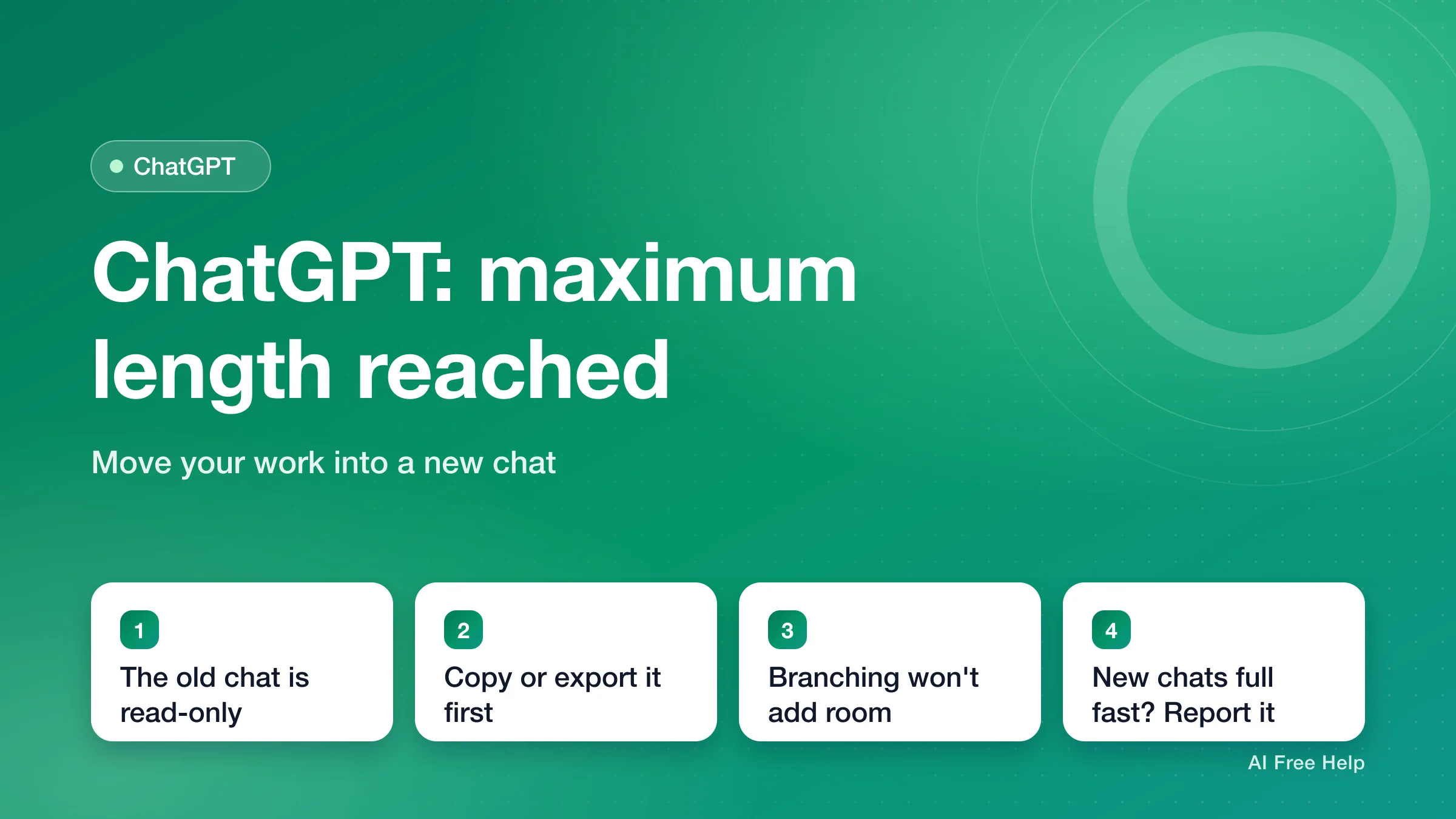
"You've reached the maximum length for this conversation, but you can keep talking by starting a new chat" means this ChatGPT chat holds as much as it can, and it will not take new messages. It is not your usage limit. In the OpenAI community, OpenAI staff: a chat's length limit "depends on the content built up in it", not on how many messages you sent or how old the chat is. The same reply says it is "different from a temporary usage limit that resets." So waiting does not reopen a chat that is really full. It is also not the older "You've reached our limit of messages per hour. Please try again later.", which is a message limit that ends after a wait.
OpenAI's help center has no page for this exact notice. The closest one, Why does ChatGPT say "Context window full" or "Chat memory full"?, covers the Free plan's version and says "Your messages and ChatGPT's replies both take up space, so a few long exchanges can fill a chat."
Which ChatGPT limit is this, and how do you keep going?
ChatGPT has several limit notices, and only "You've reached the maximum length for this conversation" after a long chat means the chat itself is full and has to be continued in a new one. Find your notice in this table first:
| What you see | What it means | First move |
|---|---|---|
| "You've reached the maximum length for this conversation…" after a long chat | This chat is full. It stays readable but takes no new messages. | Carry the context into a new chat |
| The same notice in a new chat, within its first 20 or so short messages | Not a normal full chat. Reported since September 2026, and still in mid-November. | See what to do when new chats fill fast |
| "Context window full" or "Chat memory full" (Free plan) | Official: the Free plan's notice for a full chat. It may offer a new chat with a summary, or an upgrade. | Use the option the notice offers, or follow the steps below |
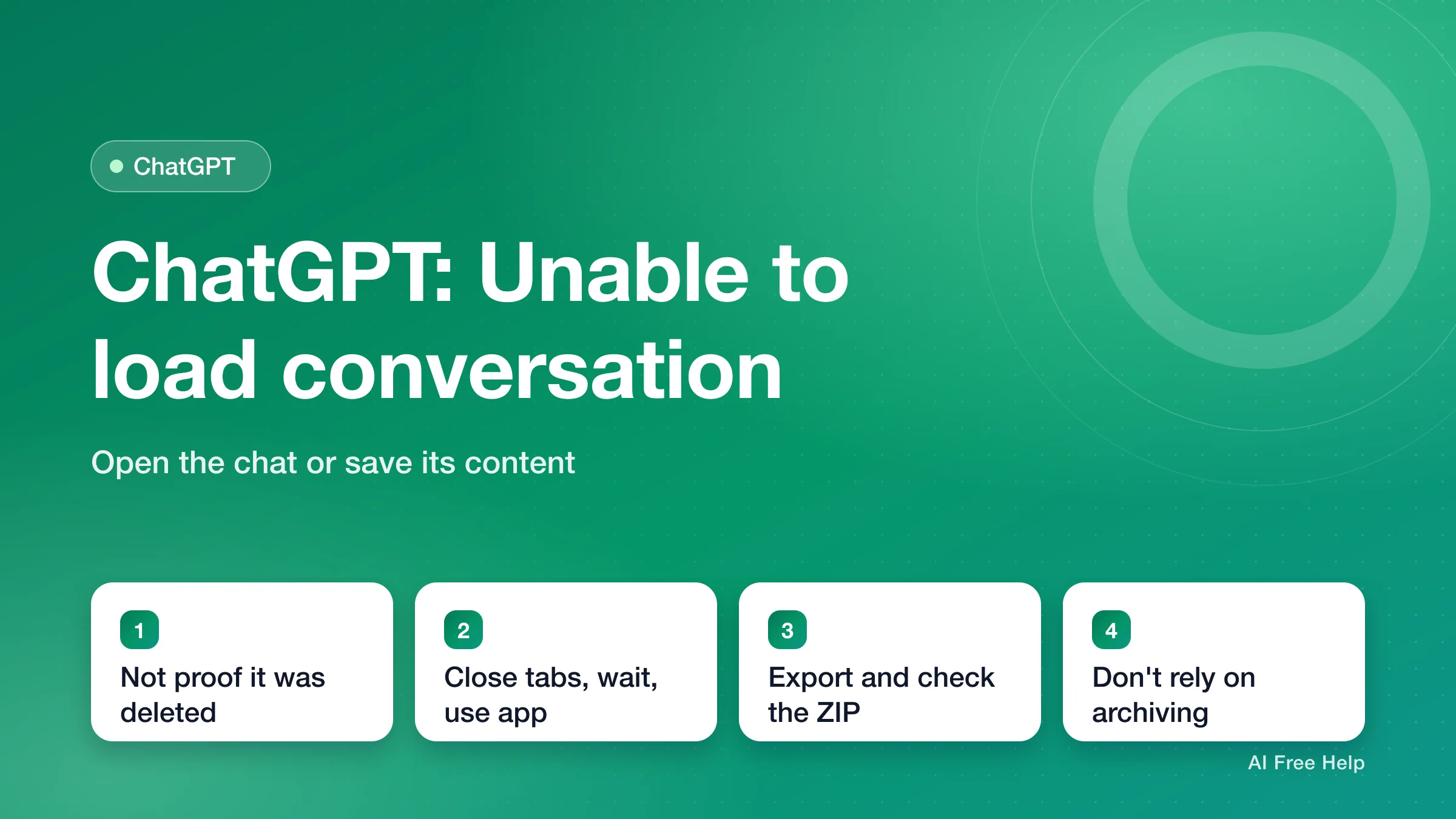
| "This conversation is too long, please start a new one." when you open an old chat | The old chat does not load. OpenAI staff: a chat at the length limit should normally still open and be readable. | Try the chat from the sidebar in another browser or the app, then contact OpenAI Support. A data export includes your chat history. |
| "You've reached our limit of messages per hour. Please try again later." (older wording), or a model limit with a reset time | A message or usage allowance, not this chat's length. OpenAI's GPT-6 models page says "ChatGPT displays when an allowance resets when that information is available." | Wait for the reset or pick another model |
Carry a full ChatGPT chat into a new one
To keep working after ChatGPT's maximum-length notice, take the old chat's content out, write a handover summary, and open a new chat with it.
-
Open the full chat and leave it in your history. It is read-only, not deleted. OpenAI's Free-plan page says you "can reopen it and copy over anything you still need." Check that your last few messages are still there after a reload. Messages sent just before the lock may not have been saved.
-
Copy what you need, or export the whole chat. For single parts, scroll to them and copy them into a document. For everything, use Settings > Data controls > Export data > Export. The export can take days, so see getting the whole chat out for the limits of each way. Taking the old chat out as a file and attaching it to the new chat often works.
-
Write a handover summary. The old chat often refuses even this request, so write it from the copied text, or attach the file to the new chat and ask for the summary there first. Paste this as the first message:
textThe attached file (or the text below) is my previous ChatGPT conversation. Before we continue, write a handover summary with: 1. The goal and what "done" looks like. 2. Decisions we made, and why. 3. What we tried and rejected, so we don't repeat it. 4. What is finished, with the exact names, code or wording I will need. 5. What is still open, and the next step. Tell me if anything looks missing. Then continue from the next step. -
Keep the new chat lean. Attach only the files the next step needs. If the notice offers Continue in a new chat or a new chat with a summary, you can use it instead of steps 2 and 3. OpenAI's Free-plan page warns that "A summary may leave out details," so compare it with your copy.
-
Put related chats in a project if you want them to find each other. Open the old chat's menu and choose Move to project, then start the new chat in the same project. OpenAI's Projects page says "Chats can reference other conversations within the same project." A project does not give a chat more room: chats inside projects that still fill up are common.
-
Save a checkpoint before the next chat gets long. OpenAI's Free-plan page says the notice can appear "even if you didn't see a warning earlier." Every so often, ask the chat for the same handover summary and save it outside ChatGPT, so a lock costs you minutes, not days.
Why a ChatGPT chat fills up, and how big it can get
A ChatGPT chat fills up because every message and every reply stays in the chat's shared space, together with the instructions and tools ChatGPT adds itself. The ChatGPT pricing page says that space is also used for "system instructions (including tools and personality), memories (if enabled), and internal processing."
OpenAI does not publish how long one chat can get before this notice. It publishes context windows, which is how much the model can work with at once, and its two pages give different numbers:
| Plan | Pricing page, November 2026: Instant | Pricing page: Reasoning | Model help page, mid-2026: Instant |
|---|---|---|---|
| Free | 27K | Varies | 16K |
| Go | 54K | 256K | not listed |
| Plus | 54K | 256K | 32K |
| Pro | 128K | 400K | 128K |
The help page figures come from the July 2026 version of OpenAI's GPT-5.5 in ChatGPT page, which also gave 256K for Thinking on paid plans and 400K on Pro. That address now opens the GPT-6 page. The current GPT-6 models page no longer lists context windows. Work and Codex are larger: the ChatGPT Work and Codex page says GPT-6.1 Sol has "a default context window of 500,000 tokens in ChatGPT Work and Codex."
Some things fill a chat faster:
- Long exchanges. The OpenAI Support reply says "A few long exchanges can take up more space than many short ones."
- Big pastes. OpenAI's release notes say ChatGPT turns pastes over 10,000 characters into an attachment to keep them from "consuming your entire context window."
- Large files pulled in through a connected app. In rare cases a new chat hit this notice right after ChatGPT fetched a multi-megabyte file through a connector. Uploading the same file directly may avoid it.
- Memory. The pricing page counts memories in the shared space. But OpenAI's Free-plan page says "Deleting saved memories won't make more room in the chat," and for "Chat memory full," OpenAI staff: you don't need to delete your saved memories. Deleting memories will not reopen a full chat.
OpenAI also does not say whether edited messages and regenerated replies count toward a chat's length.
Claude has a similar per-chat limit with its own fixes, covered in Claude "Your message will exceed the length limit".
New ChatGPT chats that fill within 20 messages
Since September 2026, with reports still coming in mid-November, ChatGPT has shown the maximum-length notice, "Context window full" or "Chat memory full" in new chats after anywhere from 1 to about 20 messages. It has affected Free, Plus, Pro and Business accounts, on the web and in the apps. That is not a normal full chat.
In October, OpenAI staff: "We're looking into whether this is a widespread issue". In November, OpenAI staff: "a mitigation had been applied" for the "Chat memory full" reports. Reports of the maximum-length notice in new chats continued after that. OpenAI's status page listed conversation errors in that period, but no incident named the conversation length.
If it happens to you:
- Test with one short message in a separate new chat. OpenAI's Free-plan page suggests a message like "What's the capital of France?"
- Check OpenAI Status. If there is an incident affecting ChatGPT conversations, try again after it is resolved.
- Try the same short message in a private browser window, signed in to the same account. The Free-plan page lists this step.
- Wait several days to a week before you rebuild everything. Since these problems began, full chats and new chats often worked again within several days to a week.
- Contact OpenAI Support. OpenAI's contact page says to open the chat bubble at the bottom right of help.openai.com. OpenAI staff ask for the conversation link or ID, the model, a screenshot of the warning, and the time with your time zone. OpenAI's Free-plan page adds your app or browser version and about how many messages you sent.
Turning off Memory gave new chats a little more room in rare cases. It did not stop the notice. Clearing the browser cache, deleting project files or old chats, and switching browsers have no evidence of helping.
Branch, upgrade, wait, or switch to Work: what helps with ChatGPT's length limit
Here is what each popular fix for ChatGPT's maximum-length notice does, with OpenAI's own wording where there is any.
- Branch in new chat: it does not add room. On the web, you open the ⋯ menu under a message and choose Branch in new chat (the help page calls it "Branch in a new chat"). OpenAI's GPT-5.5 help page, July 2026 version, said it "opens a new chat that continues from that point in the conversation," so the branch carries all the history up to that message. No OpenAI page says a branch gets a fresh budget. Branches that fill again after anywhere from one message to about 20 are common. A branch from an early message has more room, but loses everything after it.
- Asking the full chat for a summary: the old chat often refuses even that one message. Ask for the summary before the limit, as in step 6 above.
- Editing your last message into a summary request: this helped in rare cases in 2024 and 2025, and nobody reports it working in 2026. OpenAI's help page also changed: its March 2026 version said "You can edit only your most recent message," and the July 2026 version said "You can edit any of your messages." Editing an earlier message may still end in the same notice.
- Upgrading your plan: bigger plans have bigger context windows on the pricing page. On the Free plan, OpenAI says that if the notice offers an upgrade, you "can also choose that option to continue in the original chat." For this maximum-length notice, no OpenAI page says an upgrade unlocks a full chat. Upgrading after the lock helped only in rare cases (a Free account moving to Plus in 2025), and nobody reports a locked chat coming back after an upgrade in 2026. Pro and Business users see this notice too.
- Waiting: a chat that is really full stays full. OpenAI Support says this limit is not one that resets. Waiting helped only during the problems with new chats since September 2026 described above.
- Switching to Work or Codex: their context window is larger, and the limit notice may show a Try Work button. Work and Codex chats often hit the same maximum-length notice, though, so save checkpoints there too.
The buttons under the notice can differ between accounts. ChatGPT's web app has these labels for its limit banners: Continue in a new chat, New chat, Try Work, Upgrade to Plus and Upgrade to Go. If Continue in a new chat fails, you see "We couldn't continue this conversation. Start a new chat to keep going." Then fall back to the steps above.
Get the whole ChatGPT chat out before you move on
A full ChatGPT chat stays in your history, but getting all of it out takes some care. There are three ways.
- Export. Go to Settings > Data controls > Export data > Export, then Confirm export. OpenAI's export page says exports "can take up to 7 days to arrive" and the download link "expires 24 hours after you receive it." The ZIP has your whole chat history, not just this chat. Self-service export is not available in Business, Enterprise or ChatGPT for Healthcare workspaces.
- Copy from the page. Since August 2026, OpenAI's release notes say ChatGPT on the web "loads messages in smaller sections instead of retrieving the entire conversation at once." Select All or printing to PDF can miss parts of a long chat. Scroll through it and copy it section by section, then check the start and the end.
- Shared link. Choose Share on the chat. OpenAI staff: a shared link "can help preserve and access the conversation history" while a chat has problems. Sharing a very long chat may fail with "The conversation is too long, please start a new one." Delete the link when you no longer need it, because anyone with it can open the chat.
Frequently asked questions
Does ChatGPT Plus have a longer conversation limit than Free?
Plus has a larger context window than Free on the pricing page: 54K against 27K for Instant, and 256K for Reasoning. Plus, Pro and Business users still reach the maximum-length notice, and OpenAI does not publish a per-chat limit for any plan. Why a chat fills up has both sets of official numbers.
Is there a way around the ChatGPT conversation limit?
No setting raises the limit of one chat. The supported way forward is a new chat that starts with your copied or exported content and a handover summary, as in the steps above.
Why does ChatGPT say "Chat memory full" when my saved memories are not full?
"Chat memory full" is about the space in that chat, not the saved memories list. An OpenAI Support reply says the warning "is about how much history ChatGPT can use in that chat," and that you don't need to delete saved memories.
Will the new chat remember the old one?
Only what you give it, plus what Memory picks up. OpenAI's Memory page says "Memory does not retain every detail from every conversation," so attach the copied chat or paste the handover summary.