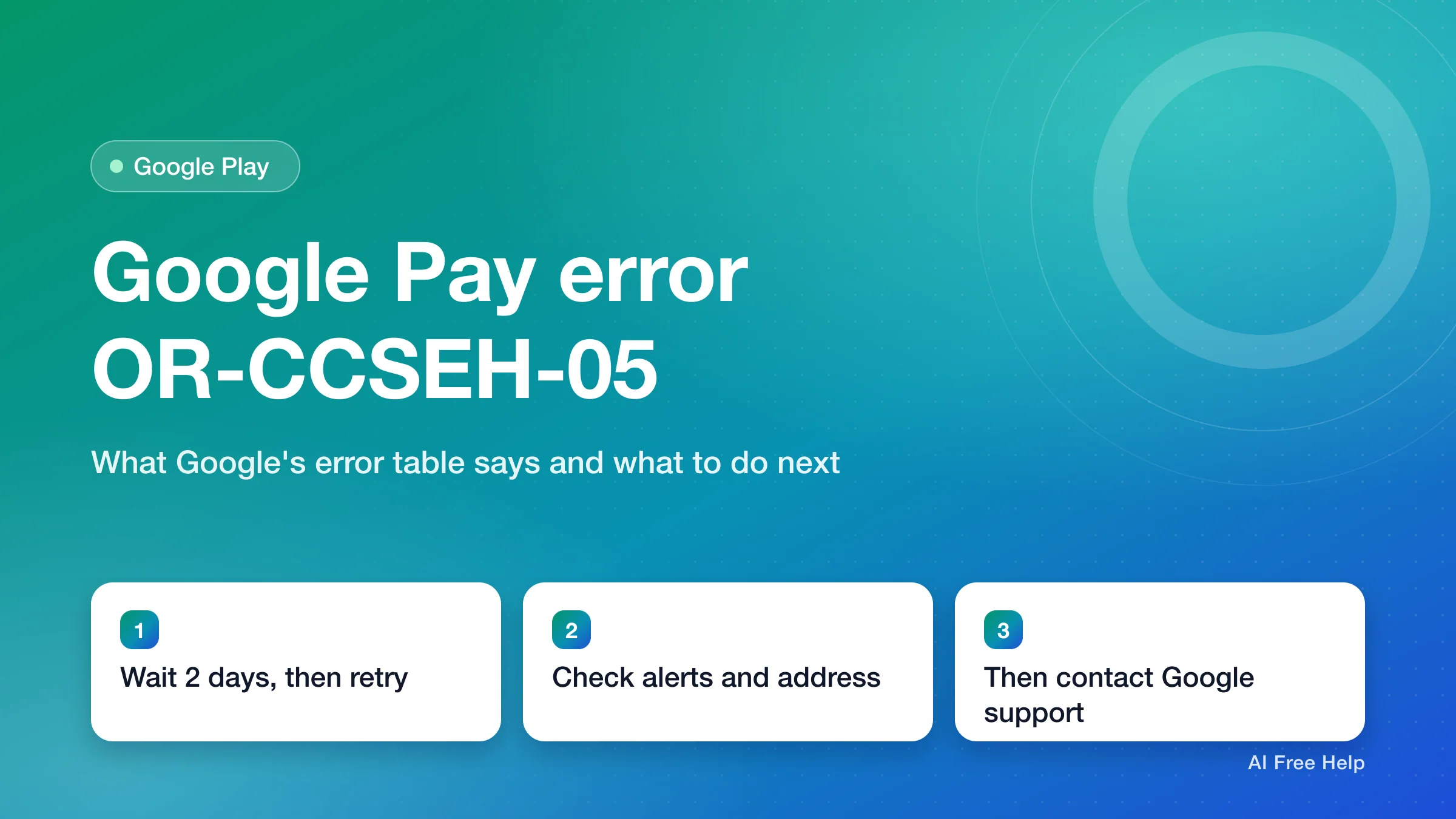
OR-CCSEH-05 is one of the codes Google lists under "Contact Google support" in its payment error table. Google doesn't explain what triggers this particular code. For the whole group, it gives the same three steps: wait 2 days, try the payment again, and contact Google support if you still get an error (Google Pay Help, checked 2026-11-15).
You don't have to sit idle for those 2 days. Sign in at payments.google.com and clear any alert or verification request. Then check that your card's billing address and expiration date match what your bank has on file. Google Play Help names expired cards and old billing addresses as common reasons payments fail.
| Your situation | What Google says about it | What to do first |
|---|---|---|
| You see OR-CCSEH-05, OR-CCSEH-21, OR-CCSEH-23, or OR-CCSEH-24 | Listed under "Contact Google support". No specific cause is published | Wait 2 days, try once more, then contact Google support |
| payments.google.com shows an alert, or the card says "Verify" | Google needs to confirm your identity or payment info | Finish verification at payments.google.com |
| Your card's billing address or ZIP code is different from the one in Google payments | An address mismatch can get the payment declined | Edit the card's billing address, then retry |
| The card is expired or was recently reissued | Expired cards cause declines | Update the expiration date and CVC, or add the new card |
| You moved, or your card is from a different country than your payments profile | A payments profile's country can't be changed | Create a payments profile for the new country |
| You see OR-CCSEH-22 or OR-CCSEH-32 instead | Listed as declined by your issuer | Contact your bank, or try a different payment method |
What does error code OR-CCSEH-05 mean?
Google Pay Help's article "Fix issues when you pay for Google products & services" has three error tables:
- Codes where your issuer declined the payment.
- Codes where you need to verify your info.
- Codes where you can contact Google support.
OR-CCSEH-05 appears in the third table. The same block lists OR-BAIH-10, OR-CAC-01, OR-CAC-05, OR-CCSEH-21, OR-CCSEH-23, OR-CCSEH-24, OR-CUSEH-02, OR-HDT-16, OR-REH-04, and OR-TAPSH-08. In the table, these codes all share one message: "We couldn’t complete this action. Contact us." (checked 2026-11-15). If the message on your screen is worded differently, go by the code in brackets.
That's all Google publishes about this code. It doesn't name a cause and doesn't say whether the problem is with the card, the account, or the purchase.
What the table does tell you is which group the code is not in. It isn't in the issuer-declined table, so Google isn't saying your bank refused the charge. It isn't in the verification table either. The instruction is to wait, retry, and then ask Google.
How do I fix OR-CCSEH-05 on Google Play or Google Pay?
Google's own steps for this group are short. The checks before them come from the general troubleshooting in Google Pay Help and Google Play Help. They are the things support is likely to ask about anyway.
- Check for alerts. Sign in at payments.google.com. At the top, select Alerts. If you see a critical alert, enter the payment information it asks for and wait for Google's response. Google Play Help says your payments profile might be deactivated and that you'll get the review results by email. Google doesn't publish how long the review takes.
- Check the card's billing address. On payments.google.com, find the card and click Edit. Make sure the address, including the ZIP code, matches your card's billing address. Update it if needed.
- Check the card details. On the same page, check the expiration date. Remove or update the card if it has expired.
- Wait 2 days. This is the first step Google gives for every code in the "Contact Google support" group.
- Try the payment again in the same place you first saw the error (the Play Store, Google One, or the Google Store).
- If you still get an error, contact Google support. Google Pay Help's "contact Google support" link is support.google.com/googlepay/gethelp. It asks you to sign in to your Google Account first.
When you contact support, give them the exact code (OR-CCSEH-05), where it appeared (for example, adding a card in the Play Store or subscribing on Google One), and the date. That helps them find the failed attempt.
How do I verify my payment method on payments.google.com?
Google sometimes needs to confirm that a card is yours before it allows a purchase or lets you add a new payment method. Google Pay Help lists these reasons, among others: confirming your identity when you buy from Google, confirming it when you add a new payment method, and securing your account after unusual activity.
To verify a card (Google Pay Help, checked 2026-11-15):
- Go to payments.google.com and sign in.
- At the top right, select Alerts, then Verify. If there are no alerts, select Payment methods.
- Next to the card, select Verify.
- If you're offered a code, select Get code. Google places a temporary charge of less than $1.95 on your card. The last 6 digits of that charge are your verification code.
- Find the charge in your bank's website or app. Google says the code can show up right away but can take up to 7 days. You might see a 5-digit code at first. The full 6-digit code appears once your bank approves the transaction.
- Enter the 6-digit code and select Verify.
Google says the temporary charge is refunded within 30 days. If Google asks you to verify, any pending transactions are canceled, and held transactions are returned to your account within 14 working days.
You might be asked to upload documents instead, such as a government ID, proof of address, or an image of the card. Google says that review can take 1–7 days. If verification fails, Google sends an email with instructions on how to appeal.
Does my card's billing address have to match my Google payments address?
Yes, in the sense that a mismatch can get the payment declined. Google Play Help says a card registered to a different address "can cause the payment to be declined" and tells you to check that the ZIP code matches. Google Pay Help's general troubleshooting includes the same check.
To update a card's billing address (Google Pay Help, checked 2026-11-15):
- Sign in to Payment methods on payments.google.com.
- Find the card and click Edit.
- Update the billing address.
- Click Update, then try your purchase again.
A card's billing address is different from your payments profile's legal address. The legal address is the first billing address you added to Google, or the one you used to verify your identity. Google may ask you to fill out a form and upload documents before it changes a legal address.
Can I use a card from a different country than my Google payments profile?
A payments profile is the record Google keeps of your name, address, country, and payment methods for buying from Google. Google Pay Help says you can't change the legal country of an existing payments profile. If you moved, are traveling, or live in another country temporarily, you have to create a new payments profile. You can have only one payments profile per country.
To create a payments profile for a new country:
- On payments.google.com, sign in to Settings.
- Under "Payments profile," next to "Country," click Edit.
- Click Create new profile, then Continue.
- Choose the country, enter the address, and click Submit.
A new profile doesn't affect payments for services you already have. New purchases in the new country use the new profile.
Google Play has its own country setting with tighter rules. Google Play Help says that to set up a new Play country, you must be in that country and have a payment method from it. You must also wait at least 90 days between changes, and the change can take up to 48 hours to update. Google doesn't connect OR-CCSEH-05 to a country mismatch. But if you recently moved or added a card from another country, it's worth checking this before you contact support.
OR-CCSEH-05 when subscribing to Google One or Google AI Pro
Google AI Pro is sold as a Google One membership. Its help page is part of Google One Help. For a declined payment, Google One Help sends you to Google Pay, so the steps above apply. Google One Help adds a few of its own (Google One Help, checked 2026-11-15):
- Fix a declined payment: sign in to Google Pay, click Update payment method information, choose a payment method, and click Continue.
- Update a recently added card: in Google Pay, go to Payment methods, click Edit next to the card, enter the expiration date and CVC, check the billing address, and click Save.
- Use a supported payment method: Google One Help lists credit cards, bank accounts (US only), PayPal, and Google Play balance (only in some countries).
- Contact your card provider: if your card details are correct and the payment still fails, Google One Help says your card provider may know why it can't be charged.
OR-CCSEH-21, OR-CCSEH-22, OR-CCSEH-26: are they the same error?
Not all OR-CCSEH codes are in the same group. Here's how Google's table sorts the ones people ask about (checked 2026-11-15):
- OR-CCSEH-21, OR-CCSEH-23, OR-CCSEH-24: same group as OR-CCSEH-05. Same steps: wait 2 days, retry, then contact Google support.
- OR-CCSEH-22: in the issuer-declined table, with the message "[Your payment issuer] declined your payment."
- OR-CCSEH-32: also in the issuer-declined table, with the message "Transaction declined. Try a different payment method or contact your card’s issuer."
- OR-CCSEH-26: not in Google's table at all, so Google hasn't published what it means. Start with the general checks in this article (alerts, billing address, card details). If those are fine, contact your bank or Google support.
For OR-CCSEH-22 and OR-CCSEH-32, Google's steps are different. Add or select a different payment method. Make sure the card is up to date and has enough money. Ask your bank whether the card is enabled for international and online transactions.
OR-REH-04 is also in the "Contact Google support" group, so Google gives it the same three steps as OR-CCSEH-05.
Frequently asked questions
Does OR-CCSEH-05 mean my Google account or card is blocked?
Google doesn't say so. The code is in the "Contact Google support" group, not the verification group, and Google publishes no cause for it. If your payments profile needs action, Google Play Help says to look under Alerts at payments.google.com, so check there first.
Should I keep retrying the payment until it goes through?
Google's instruction for this group is to wait 2 days before trying again. Retrying over and over doesn't appear anywhere in Google's steps. Make the checks above, wait, try once, and contact support if it fails again.
Can I just pay with a different payment method?
Yes. In the Play Store, go back to the item, tap the price, tap the current payment method, and choose another one or add a new one. Google Play Help suggests this whenever one payment method has a problem. A payment method you add during a purchase is saved to your account.
Can I set a backup payment method so my subscription doesn't lapse?
Google Play lets you turn on backup payment methods. On play.google.com, tap your profile picture, select Payments & subscriptions, then Payment methods, and turn on Backup payment methods. If your primary payment method can't be charged, Google tries the backups for eligible purchases. Some payment methods, such as cash and redirect banking, can't be used as backups.